
Remove background / Gen
Remove the background. Keep the possibility.
Create an isolated cutout from your reference with AI image editing. Give a product, portrait or object room to become something new.
Uses image-generation credits, not an unlimited free cutout service. Basic edits can use your shared free allowance.
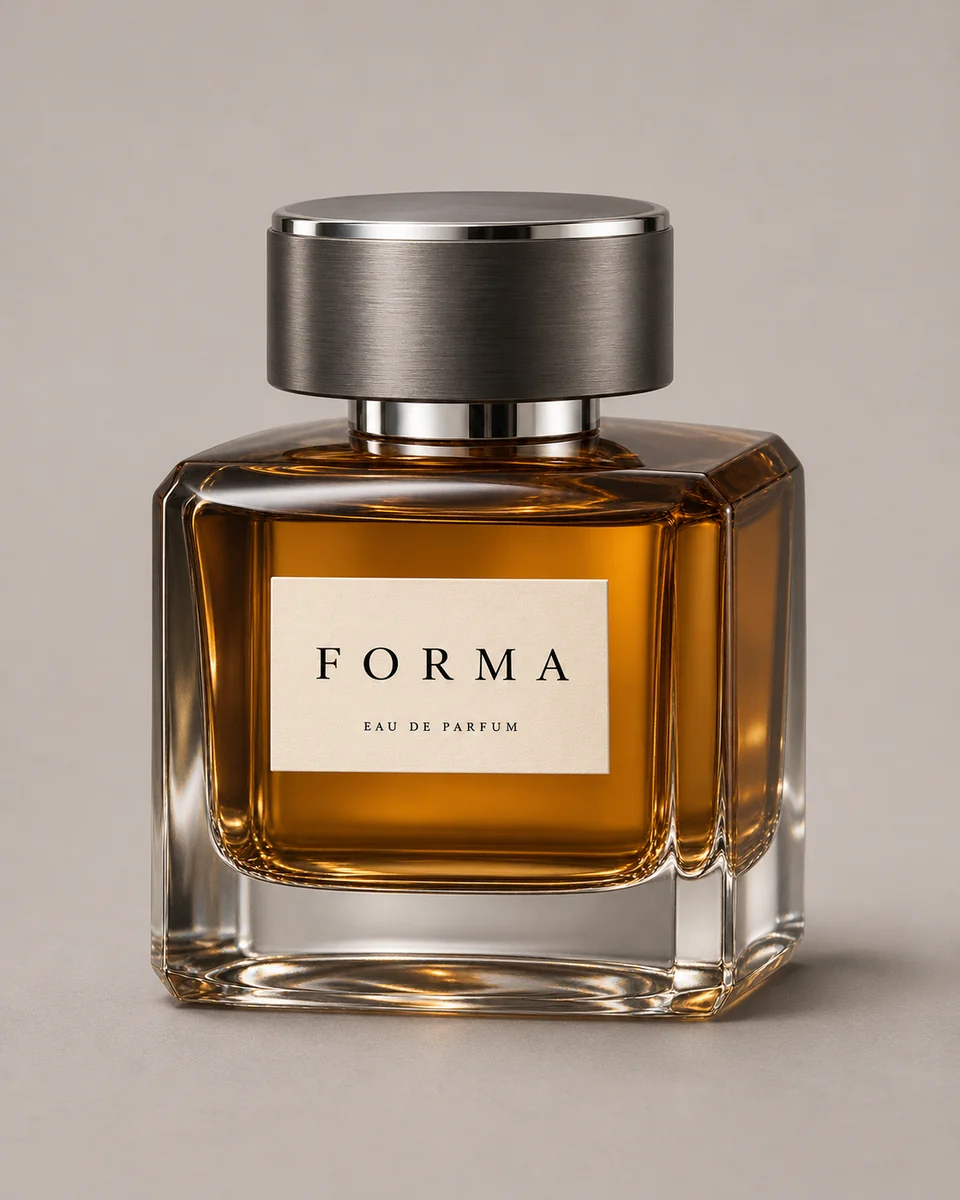 Reference
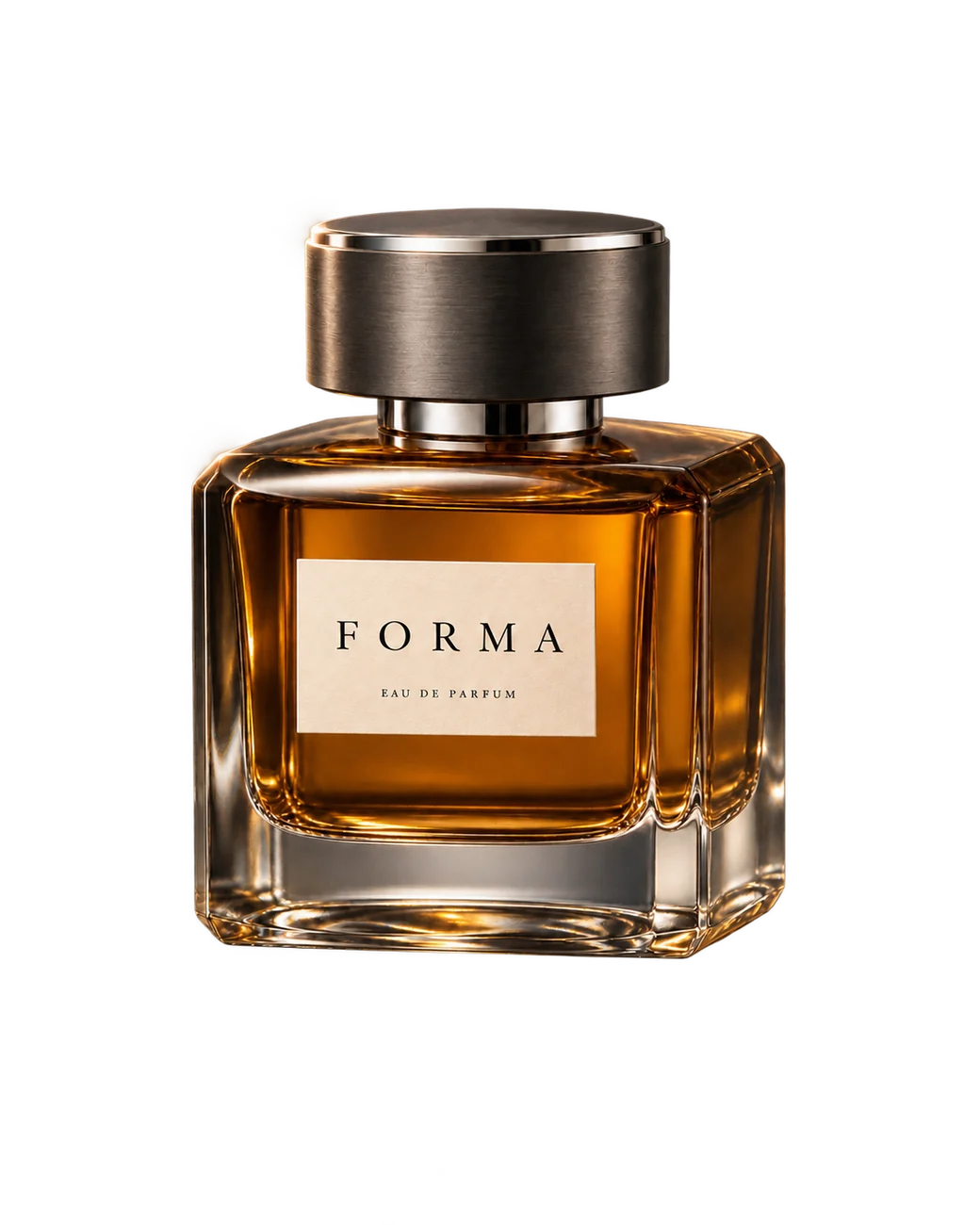 Cutout example
THE WORKFLOW
From your first reference to a result.
Attach the image
Open the prepared image-editing workflow and upload the picture you want to isolate. Common image formats include PNG, JPEG and WebP. Keep the full subject in frame.
Request a transparent cutout
The prompt is already set to remove the background and keep the main subject. Review the selected model and credits, then generate. Add a short description if the image contains several possible subjects.
Check the edges and download
Inspect hair, glass and fine details before downloading a transparency-supporting image file. Reuse the cutout in Studio, a product banner or a new background.
A little direction goes a long way.
A useful start for your next design
Isolate a product for a campaign layout or prepare a subject for a new composition. Keep the reference and cutout together in Studio, then ask for a different backdrop or a banner.
AI editing has trade-offs
This is a generative image edit, so it can change pixels in the subject rather than only deleting the background. Compare the result with your original, especially when exact product detail matters.
Transparency, not a white rectangle
Ask explicitly for a transparent background. PNG and WebP can preserve an alpha channel, while JPEG cannot. A white or checkerboard pattern drawn into an image is not the same as genuine transparency.
Choose your tools. Keep your direction.
Work with connected models and continue refining in Studio. The model picker shows current availability and access.
- GPT Image Mini
- GPT Image 1.5
- Nano Banana 2
A few things to know.
How do I remove a background in Gen?
Open this page’s prepared workflow, attach your image in the image generator, review the background-removal prompt and generate. Then inspect the result and download it in a format that supports transparency.
Is background removal free?
It is an AI image edit and uses the same allowance or credits as image generation. You can try a basic edit while free image allowance remains. Advanced models require a paid plan; there is no separate unlimited background-removal allowance.
Will the subject remain pixel-for-pixel identical?
Not necessarily. Generative editing can redraw some details. Check fine edges, faces, text and product labels against the original. This workflow is not a guaranteed lossless masking tool.
What should I download for a transparent background?
Use a result file that supports transparency, such as PNG or WebP. JPEG does not preserve transparency. Inspect the actual output: choosing a file format alone does not turn an opaque image into a transparent one.
Start with what you have.
Remove an image backgroundThe workflow opens with a prepared brief. Attach your references and review the settings before generating.