Product photography / Gen
AI product photography. Your product, reimagined.
Turn a simple reference into a polished product photo. Explore lighting, backdrops and compositions, then take the whole campaign into Studio.
Try basic images with your shared free allowance. Advanced image models require a paid plan.
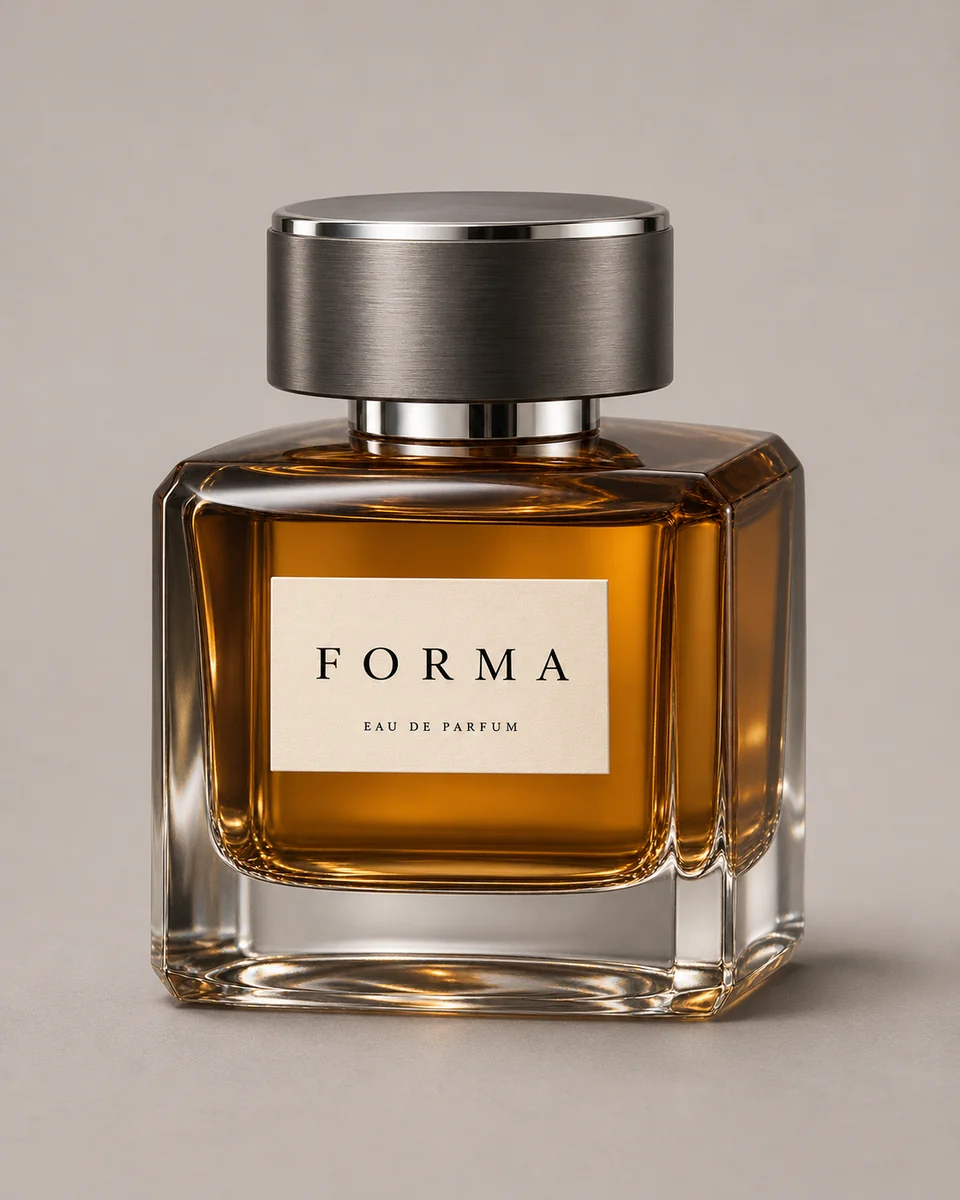 Reference
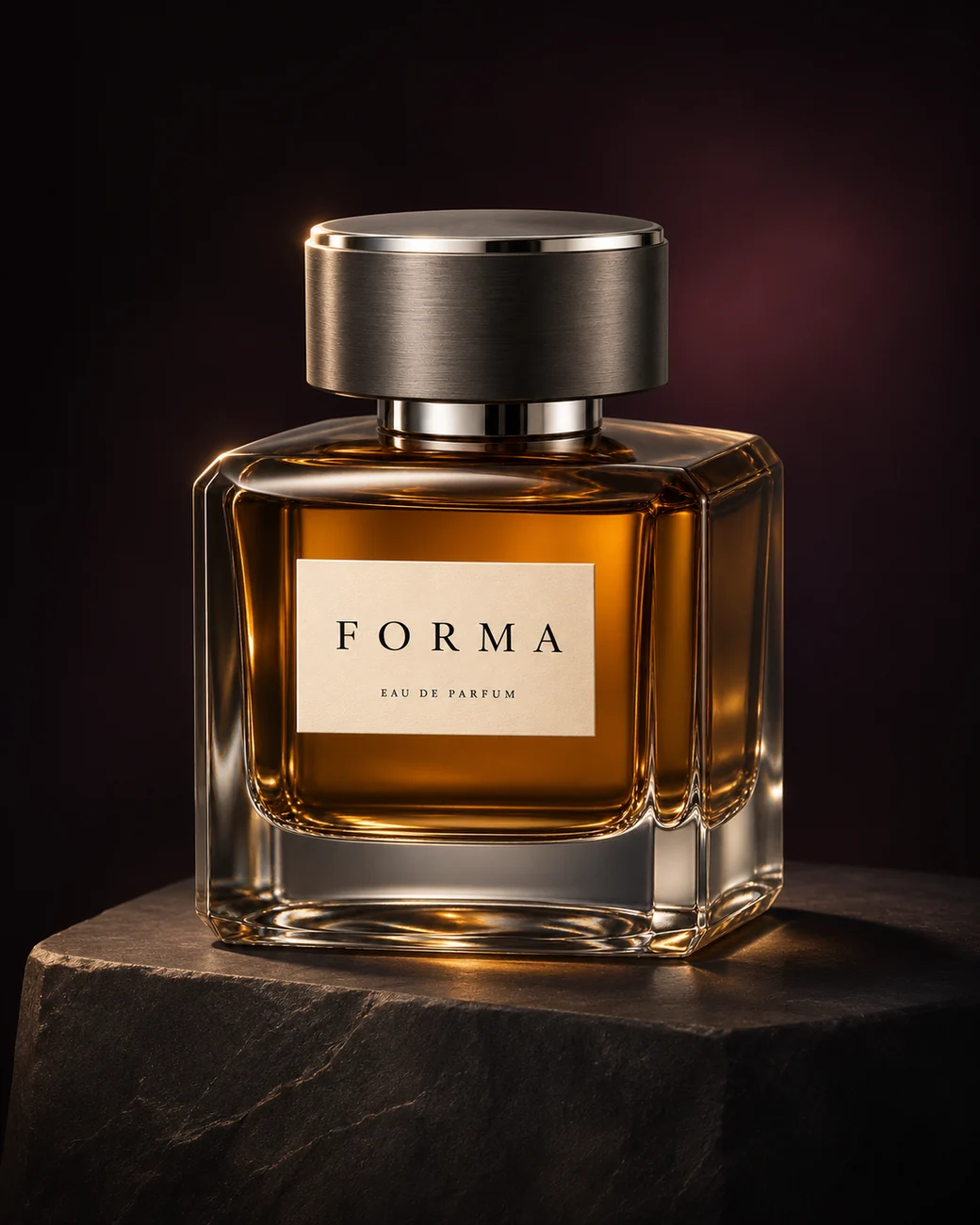 Product photo example
THE WORKFLOW
From your first reference to a result.
Bring your product
Open the image generator and attach a clear product photo. A sharp reference with a readable label gives the model more useful detail than a distant or heavily cropped image.
Direct the shoot
Start with the prepared product-photo prompt. Describe your lighting, setting and crop, then choose a model and generate. Change one detail at a time when refining a result.
Build the campaign
Download your photo, or bring it into Studio alongside headlines, alternate shots and a banner. Keep the references and creative direction together as the campaign develops.
A little direction goes a long way.
Made for your listing
Create clean catalog-style images or explore a lifestyle setting for an online store, social post or product launch. Specify where the image will be used so the composition leaves the right amount of space.
Reference-led editing
Ask for a warmer backdrop, a softer shadow or a different camera angle while keeping your reference attached. AI can change fine details, so check labels, proportions and product features before publishing.
One photo is a starting point
Reuse a selected result for a transparent cutout, campaign banner or video reference. Studio lets you compare these assets on a canvas instead of losing the direction between separate tools.
Choose your tools. Keep your direction.
Work with connected models and continue refining in Studio. The model picker shows current availability and access.
- GPT Image Mini
- GPT Image 1.5
- FLUX 2 Flash
- FLUX 2 Pro
- Nano Banana 2
A few things to know.
Can I use my own product photo?
Yes. Attach a reference in the image generator or Studio, then describe the setting and lighting you want. Use an image you have permission to upload.
Is AI product photography free?
Basic image generation uses the shared free allowance: 10 text messages or 3 images, with mixed use drawing from the same allowance. Advanced image models use credits on a paid plan.
Will the product label stay exactly the same?
Reference images guide the model, but exact reproduction is not guaranteed. Inspect text, logos, packaging and fine details. Use a closer reference or a targeted edit when something needs correcting.
Can I make a product banner too?
Yes. Ask the image generator for a banner, or use Studio to work with product shots, copy and campaign assets together. Specify the placement, dimensions and text in your brief.
Start with what you have.
Create a product photoThe workflow opens with a prepared brief. Attach your references and review the settings before generating.